


Calculator
4.5406.00 Reviews
App Specs
- Version
- Varies with Device
- Updated On
- License
- Free
- Downloads
- 10,000,000+
- Developer
- Prometheus Interactive LLC
- Categories
- Education
- Platform
- Android, iOS
Screenshots
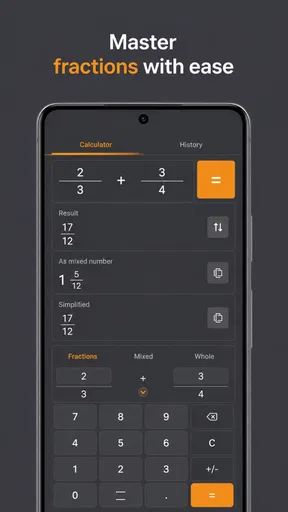
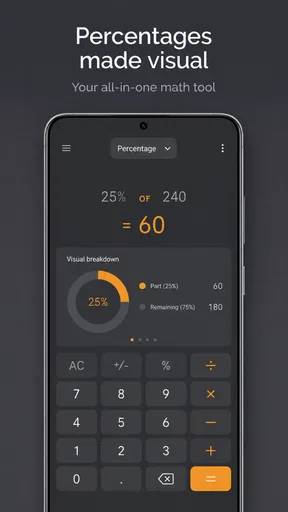
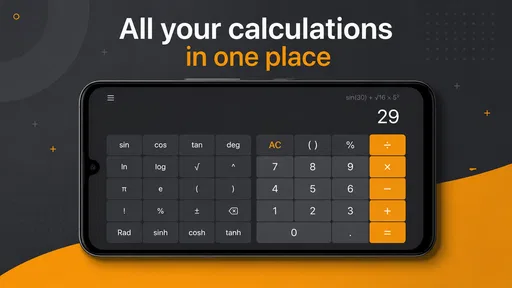
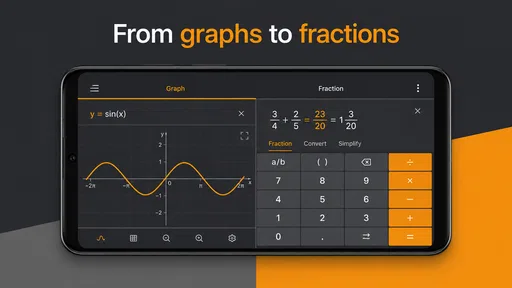
 Analysis by AppCompare
If you need a calculator for class, errands, or quick checks at your desk, this app is an easy place to start. Calculator is an education app from Prometheus Interactive LLC, and its appeal is straightforward: it gives you a scientific-calculator option without asking you to learn a complicated system before doing ordinary arithmetic. I’d recommend trying it if your current phone calculator feels too limited, while keeping in mind that a dedicated calculator may still suit demanding coursework better.
A reassuring first session
One useful way to judge a calculator app is to make the first test deliberately low-stakes. Before relying on it for homework or a purchase, enter a familiar calculation and make sure you can tell what you typed from what the app displays. That brief check builds confidence without requiring a setup routine or a lesson in calculator conventions.
If you are new to scientific calculators, resist the urge to explore every unfamiliar function at once. Start with the operations you already understand, then add just the scientific function you need for a current task. This keeps the keypad from feeling like a wall of choices and makes it easier to notice whether a particular key or entry sequence suits you.
What you can expect from the app
The first impression is practical rather than instructional. This is a calculator, not a course or a guided lesson, so the useful question is whether it helps you enter and check calculations comfortably. Its scientific focus makes it more relevant than a basic four-operation tool when a problem involves functions or more than simple addition, subtraction, multiplication, and division.
The app has been available since January 13, 2016, and has grown to over 10 million installs. It holds a 4.5 average from around 115,000 ratings, which suggests many people find it useful, though popularity alone cannot tell you whether its layout matches your habits. I’d treat those figures as reassurance that it is an established option, not as a substitute for trying the keypad yourself.
It is free to download and rated Everyone. In-app purchases range from $0.99 to $99.99 per item, so it is worth paying attention to any purchase prompts and checking what an item offers before confirming. You can begin with the free app and decide whether its everyday use is enough for you before considering anything else.
Who is likely to find it useful
I can see this working well for a student who wants one calculator for routine homework and occasional scientific expressions, or for someone who regularly checks percentages, measurements, and other figures while working. It can also be handy at home when you need to calculate a total, convert a value as part of a lesson, or verify a result without switching to a separate device.
Worth Reading Before You Choose

Flipboard Shows What News Apps Must Do Beyond the Feed

Switching to Android Auto Means Rethinking Your Driving Routine

Google Calendar Makes a Crowded Week Easier to Manage

Ludo King Makes the Most of the Minutes Between Plans

Baby Panda World Brings Quick Play to Modern Phones, but Its Game Library Feels Busy

ESPN’s Live Game View Makes Following Close Games Easier
It is less suited to someone who needs a calculator tied closely to a particular class syllabus, graphing workflow, or specialist field. A scientific keypad is not automatically a replacement for a graphing calculator, spreadsheet, or subject-specific tool. If your work depends on visualising functions, storing long calculations, or following a specific classroom method, compare those needs before relying on this app as your only option.
Getting started without overthinking setup
For a first-time user, I would keep the opening session simple: install the app, open it, and try a calculation whose answer you already know. That gives you a quick check of the key layout and the way you prefer to enter expressions. You do not need to begin with a complicated equation just because the app is scientific; a familiar example makes it easier to spot a missed tap or an unexpected input convention.
Before using it for a test or a deadline, spend a minute locating the functions you expect to use. Scientific calculators can differ in how they arrange keys and handle expression entry. Getting comfortable with that arrangement in advance reduces the chance of fumbling when you are trying to work quickly. I’d also keep a second method nearby the first few times you use an unfamiliar function, especially if the result matters.
A small but useful habit is to enter a problem in stages and pause to inspect the expression before relying on the result. This is particularly helpful when parentheses, negative values, or several operations appear together. Even a correct calculator can return an answer you did not intend if the expression was entered differently from the way you read it on paper.
Your first meaningful calculation
Imagine you are checking a class exercise after dinner. Start with a straightforward expression you can verify mentally, then try a problem containing the scientific operation you actually need for your homework. Compare the displayed result with your written working. If the answer differs, check the order of operations and the placement of brackets before assuming the app has made an error.
This workflow is more useful than tapping through random keys because it tests the whole process: finding the function, entering the expression, and interpreting the result. It also teaches you whether the keypad feels natural enough for repeated use. If you can complete one known calculation confidently, you have a solid basis for deciding whether to use it for longer study sessions.
For everyday errands, the same idea applies in a lighter way. If you are splitting a bill or checking a discount, enter the figures carefully and use a quick estimate to catch an implausible result. For example, a discount should reduce the starting price rather than increase it; that basic sense-check can expose a misplaced decimal or reversed operation before it affects your decision.
Common points of confusion
The main adjustment is understanding that “scientific” does not mean every function behaves exactly like the calculator you used at school. Key positions, expression entry, and conventions can vary between apps and physical devices. When a result looks surprising, first inspect what you typed and how the operations are grouped. A carefully checked expression is a better test than repeatedly entering the same unclear sequence.
Another common source of trouble is treating a phone calculator as a record-keeping tool. This app is useful for calculating, but I would not use a single displayed answer as the only record of a complicated assignment or work estimate. Write down the expression and relevant assumptions somewhere dependable if you will need to reproduce the result later. That makes it easier to check your reasoning and avoids confusing a correct answer with a correct method.
There is also a difference between getting an answer and learning why it is right. The app can help you calculate, but it does not replace an explanation from a teacher, textbook, or lesson when you are stuck on a concept. If you are practising a new topic, work the steps yourself first and use the calculator to check the arithmetic. That way, it supports learning instead of hiding gaps in understanding.
Because the app is free to start but includes optional in-app purchases, a first-time user may reasonably wonder whether payment is necessary. You can try the basic calculator before deciding whether to spend anything. If a purchase prompt appears, read it carefully and consider whether the offered item solves a specific need for you; do not assume every scientific function requires a purchase or that an optional item is essential.
How it compares with familiar alternatives
Compared with the simple calculator already on many phones, a scientific calculator is the more sensible choice when your work regularly goes beyond basic arithmetic. The trade-off is that extra functions can make the keypad feel busier. If you mostly split costs, add shopping totals, or check a tip, your built-in calculator may be quicker because it keeps the task simple.
Compared with a physical scientific calculator, this app has the convenience of being on the device you already carry. A physical model can be preferable for exams or classrooms where phone use is restricted, and its tactile keys may be easier for people who calculate by touch. I would not assume that an app can be used in a supervised setting; follow the rules for your course or exam.
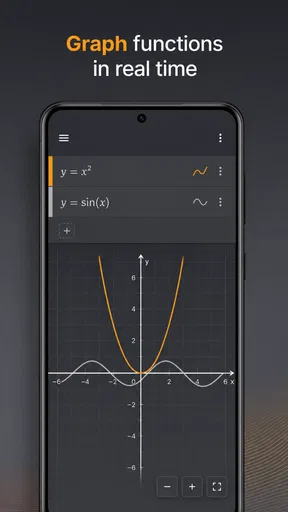
Compared with spreadsheets, Calculator is better for a quick one-off answer and less suitable for keeping a structured set of figures. A spreadsheet is the better choice when you need rows of data, repeated formulas, or a clear record that you can revisit. For plotting or exploring how a function changes, a dedicated graphing tool is usually more appropriate than expecting a keypad calculator to provide a visual explanation.
What to try next, and when to choose something else
Once the first calculation feels comfortable, build confidence by checking a few real problems from your routine: one simple total, one percentage, and one scientific expression relevant to your studies. Use examples where you can independently judge whether the answer is plausible. That gives you a better sense of whether the app suits your pace than testing functions you will never use.
If you use it for homework, keep the written steps alongside the result. If you use it for a quick household calculation, estimate first and verify afterward. These small checks are especially useful on a phone, where a single mistap can change an expression without being obvious at a glance. They also help you distinguish a keypad issue from a misunderstanding of the maths.
A practical next step is to make a short personal list of the kinds of calculations you actually repeat: perhaps a percentage for a sale, a measurement for a project, or a scientific operation from current coursework. Use that list to assess the app rather than trying to learn every available key. A calculator earns a place in your routine when it makes those recurring tasks easier, not simply because it has more functions than you need.
If you are choosing for a younger learner, the Everyone age rating makes the app broadly suitable, but it does not turn the calculator into a teaching aid. I would pair it with worked examples and ask the learner to explain the steps before checking the answer. That preserves the useful part of the exercise: understanding the method, not just reaching a number.
The strongest reason to choose Calculator is its role as an accessible scientific option for someone who wants more than basic arithmetic without moving straight to a specialised study tool. The main limitation is that a calculator can only be as useful as its input style and the user’s understanding of the expression. Prometheus Interactive LLC has built an established app with a broad audience, but the right choice still depends on your own routine.
My recommendation is simple: give it a short, low-pressure trial with calculations you already know, then use it for a real task only after you are comfortable reading and entering expressions. If you need graphs, persistent calculation records, or a classroom-approved physical device, choose a tool designed for that purpose instead. For everyday scientific calculations on a phone, though, Calculator is a reasonable option to keep within reach.
Pros
- Handles everyday arithmetic quickly and is easy to use.
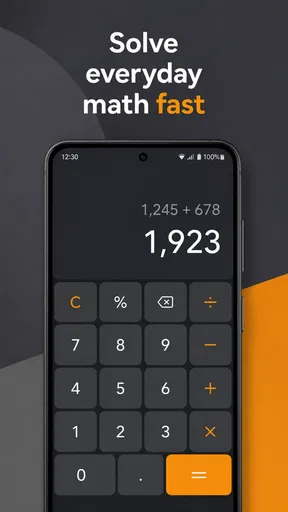
- Clear number display makes calculations easy to check.
- Supports common operations such as addition
- subtraction
- and percentages.
- Useful for quick calculations without needing a separate device.
- Simple interface is approachable for users of different experience levels.
Cons
- May lack advanced scientific or financial functions.
- Small buttons can make input less comfortable on compact screens.
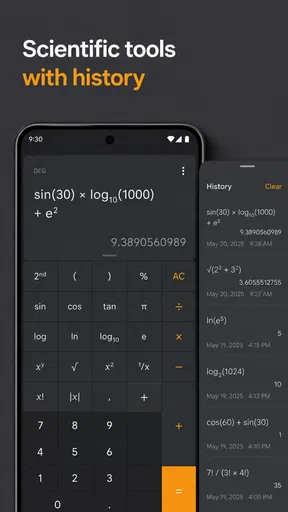
- A basic calculator may not keep a detailed history of past calculations.
- Large or complex expressions can be harder to review at a glance.
- Features and appearance may vary depending on the device or app version.
FAQs for Calculator
What can I use Calculator for?
Calculator is designed for everyday arithmetic, including addition, subtraction, multiplication, and division. Depending on the version and device, it may also offer functions such as percentages, decimals, sign changes, and a scientific mode for more advanced calculations. It is useful for quick sums, comparing prices, splitting bills, or checking homework. Available features can vary between Android and iOS devices.
Does Calculator include scientific or advanced functions?
Many calculator apps provide advanced options such as powers, square roots, logarithms, trigonometric functions, and parentheses, but these may not be available in every version of Calculator. Check the app’s controls or rotate your device if your version supports a scientific layout. If you need specialized features for engineering, statistics, or graphing, confirm that the app includes them before relying on it.
Is Calculator free to download and use?
The cost depends on which Calculator app you choose and where you download it. Basic calculator tools are often included with a phone or offered free, while third-party versions may include advertisements, optional purchases, or paid upgrades. Review the listing in the official Google Play Store or Apple App Store for current pricing and any in-app purchase details before installing.
Does Calculator work without an internet connection?
Basic calculations are generally performed directly on your device, so a calculator app will usually work without Wi-Fi or mobile data once it is installed. This makes it convenient for travel, shopping, and situations with limited connectivity. Some third-party apps may use the internet for optional features, advertisements, or analytics, so check the app’s description and permissions if offline use or privacy is important to you.
Is Calculator safe, and what should I check before downloading it?
The built-in calculator on your phone is usually the simplest option, while third-party apps can differ in their privacy practices and permissions. Download only from the official app store, check the developer name, recent reviews, and requested permissions, and read the privacy information provided on the listing. A basic calculator should not normally need access to unrelated data such as contacts or messages.


